What’s new (October 2026)
To export 360° panoramas to TopoDOT, add a panorama camera (Type=5) to your existing IPRJ export and give each panorama a position and a 3×3 rotation matrix. Everything else about the IPRJ format stays the same. The only new idea is how the matrix says which way the panorama is facing.
Background
The TopoDOT® application offers the capability to import calibrated images and map the image pixel orientation to the perspective view of the selected MicroStationTM view. This unique tool makes it possible to overlay extracted CAD elements over the image in the selected view with very high precision thereby employing this image information as a reference in feature identification.
TopoDOT® places specific requirements on the calibrated image if this feature is to be successfully employed. These requirements can be summarized briefly as:
- Camera/Lens model (unique to each camera/lens pair for best results)
- Camera Location (project coordinates for each image)
- Camera Orientation (defined with respect to project reference frame)
The responsibility for providing the tools necessary to extract this information lies with the system manufacturer. The operator should follow manufacturer’s process procedures necessary to acquire this data efficiently and accurately.
Certainty 3D will cooperate with any manufacturer to import their specific file formats. As increasing numbers of manufacturers add such calibrated image capability to their systems or individual operators attempt to develop their own solutions, Certainty 3D has seen a need for an “open” format to support our customers and the industry. This document identifies and explains the file format necessary for effective application of this unique TopoDOT® feature.
Image Project File (*.iprj)
The image project file contains information pertaining to the project directories, units, and available cameras.
[Image Project]
Version=2
Units=sf
RotationOrder=6

CameraCount=1
Name0=Camera 1
ImageDirectory0=.\
CalFile0=.\camera1.cal
[Image Project] – Header required for the file.
Version– Current version of the file format. Use value of 2
Units– Units in which the coordinates are specified in the image project.
Valid values are:
- sf – Survey Feet
- f – Feet
- m – Meters
RotationOrder– Documented value of 6 allows for the transformation matrix of each image to be directly specified in the image list file. Other values are no longer supported.
CameraCount– If multiple camera calibrations are available, set this value to the total
number of cameras in the project. For each Camera, there must be a Name and CalFile associated with it.
Name(index) – Name of the camera calibration
ImageDirectory(index) – Each calibration file may contain a unique directory. This
directory is a relative path from the location of the image project file to the
directory where all of your images are located. This may be left as “.\” if you wish to define the directory per image in the Image List file below.
CalFile(index) – Relative path from the location of the image project file to the location of the camera calibration file.
Camera Calibration File(*.cal)
The camera calibration file contains distortion coefficients and intrinsic properties of the camera used by TopoDOT to remove distortion of the images on the fly. It is important to note that should the images provided with the image project already have their distortion removed, the radial and tangential distortion coefficients (k and P values) should be set to 0.
[Calibration]
Version=2
Type=1
dx=8.4E-6
dy=8.4E-6
Nx=4256
Ny=2832
fx=1689.97897707826
fy=1691.03752169727
Cx=2122.84859490073
Cy=1432.31598208073
k1=0.00403931369502396
k2=-0.0754263253765206
k3=-0.0852103024783204
k4=0.121648640543892
P1=-0.00028428014657276
P2=8.05378517964374E-5
[Calibration] – Header required for the file.
Version– Current version of the camera calibration file. Use value of 2
Type– Type of Lens used. Valid values are:
- 0 – Normal Lens.
- 1 – Fish Eye Lens
- 2 – Riegl Fish Eye Lens Model
- 3 – OpenCV Fish Eye Model (more information)
dx– Dimensions of a single pixel of the CCD sensor in meters. Value is typically specified by the manufacturer.
dy– Dimensions of a single pixel of the CCD sensor in meters. Value is typically specified by the manufacturer.
Nx– Number of pixels in the horizontal direction.
Ny– Number of pixels in the vertical direction.
fx – Focal length in the x direction. The parameters fx are normalized by the pixel size. fy – Focal length in the y direction. The parameters fy are normalized by the pixel size.

f........focal length [m]
dx.....[m]
Cx– Principal point in the x direction.
Cy– Principal point in the y direction.
k1– Radial distortion coefficient.
k2– Radial distortion coefficient.
k3– Radial distortion coefficient. Used for higher-order modeling of the radial distortion.
Value of 0 is valid.
k4– Radial distortion coefficient. Used for higher-order modeling of the radial distortion.
Value of 0 is valid.
P1– Tangential distortion coefficient.
P2– Tangential distortion coefficient.
Camera Location/Orientation
The image list file contains all images tagged with the camera location, orientation and filename as shown below. It is important to note that the camera location must be in the overall project coordinate system. Similarly, the orientation must be referenced to the project coordinate axes.
Image List File (*.lst) – Version 1
[Image List]
Image=image0.jpg
Xyz=302080.545548 65029.935632 106.612940
Mat=-0.399553 -0.000395 0.916710 -0.916698 -0.005088 -0.399549 0.004822 -0.999987 0.001671
Camera=0
Image=image1.jpg
Xyz=302080.545548 65029.935632 106.612940
Mat=0.399553 0.916710 -0.000395 0.916698 -0.399549 -0.005088 -0.004822 0.001671 -0.999987
Camera=0
Image=image2.jpg
Xyz=302080.545548 65029.935632 106.612940
Mat=0.399553 -0.000395 -0.916710 0.916698 -0.005088 0.399549 -0.004822 -0.999987 -0.001671
Camera=0
[Image List] – Header required for the file.
Image– Filename for the image which is appended to the cameras ImageDirectory property. Optionally, the image path may be prefixed with a relative directory for accessing the imagery. Example: .\TrackA\DSC_0044.JPG
The image must be in either a JPG, JPEG, or PNG file format.
Xyz– Coordinates of the camera sensor at the moment the image was taken.
Mat– 3×3 Rotation matrix defining the orientation of the camera at the moment the image was taken. The matrix values are specified as space separated values. r1c1 r1c2 r1c3 r2c1 r2c2 r2c3 r3c1 r3c2 r3c3
The matrix should be defined in a right-handed coordinate system, representing a transformation from local to the world frame.
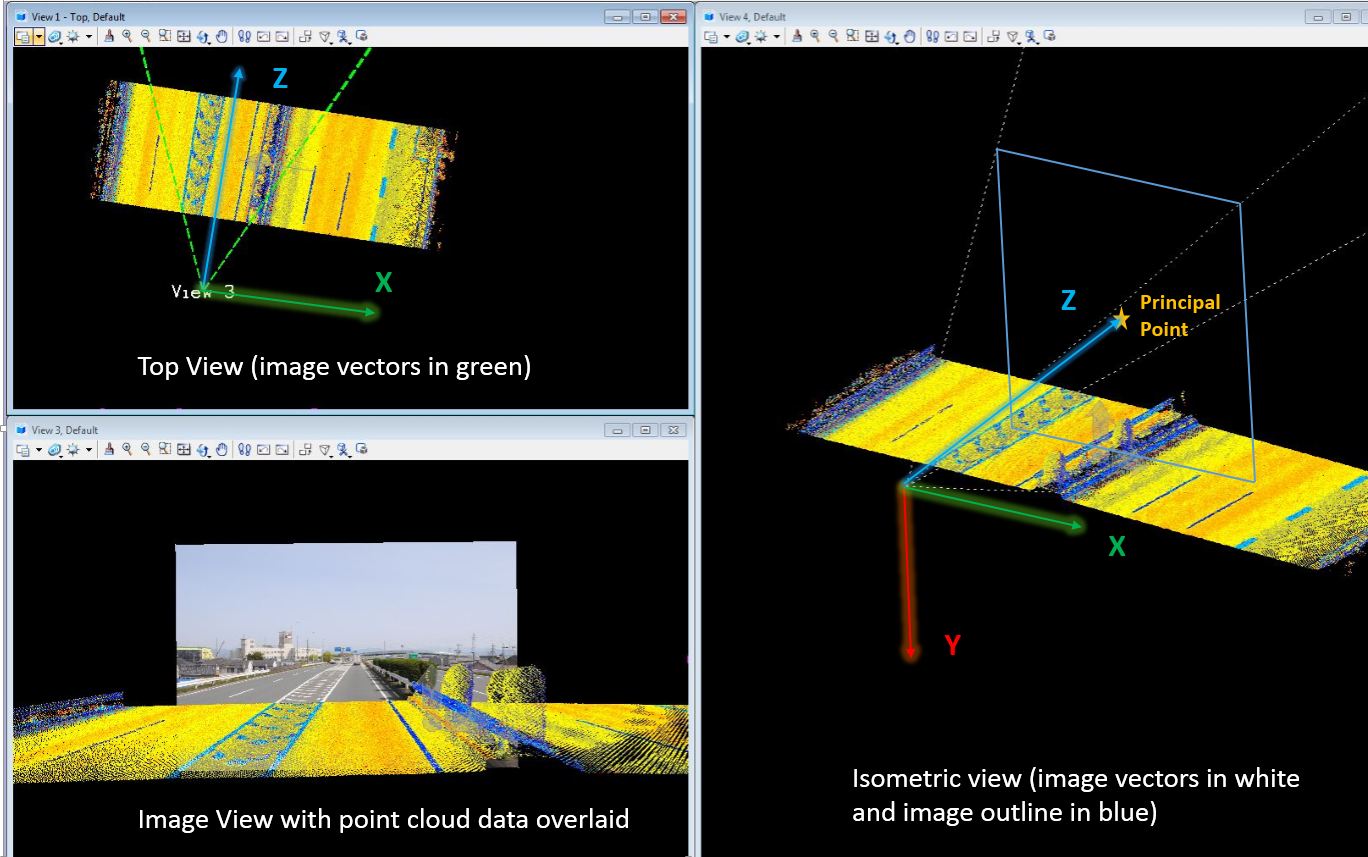
Combining Xyz with Mat should result in a final transformation matrix that orients the axes (defined in a local frame) to the world frame as shown in This Image
Camera– Index for the camera calibration to use for the image.
Panorama Images
The panorama image
Each panorama is a single equirectangular image that covers the whole sphere around the camera.
- Coverage: a full 360° left to right and 180° top to bottom (straight up to straight down).
- Shape: the width is exactly twice the height, for example 8192 × 4096 or 12288 × 6144 pixels (the two sizes we have tested).
- File type: JPEG.
Moving left to right across the image turns you a full circle around the camera. Every column of pixels is one direction you could face:
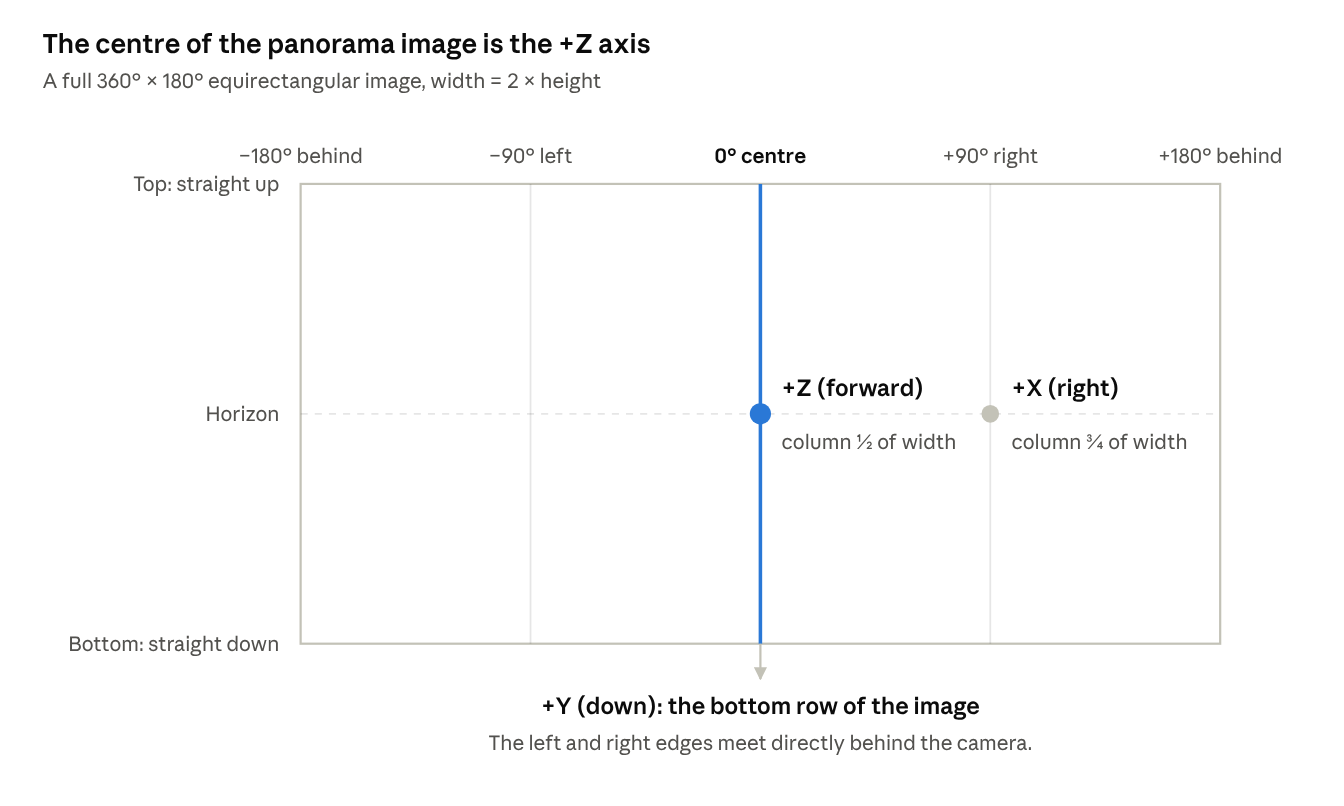
The centre column is the vertical strip of pixels exactly halfway across the image. Where it crosses the horizon row is the direction the +Z axis points. It does not have to be the direction of travel; it is wherever the middle of your image looks.
Camera file (.cal)
A panorama camera needs only its type and its image size. Write one .cal for each panorama camera, the same way you write one for each frame camera today.
[Calibration]
Version=2
Type=5
Nx=12288
Ny=6144
Only Type, Nx (image width) and Ny (image height) are needed. Type=5 is what marks the camera as a panorama; without it, TopoDOT treats it as a frame camera. Leave out the frame-camera keys (focal length, principal point, distortion) and Adjust / AdjustmentMatrix: the whole orientation goes in each panorama’s matrix.
Project file (.iprj)
Set RotationOrder=6. It tells TopoDOT to read each image’s orientation from a Mat= rotation matrix. This spec defines panorama orientation only as a matrix. TopoDOT does apply heading/roll/pitch (RotationOrder 1–4 with Hrp=) to a panorama camera the same way it does to a frame camera, but we have not validated panoramas that way, so use Mat=.
The panorama camera is listed like any other camera:
[Image Project]
Version=2
Units=m
RotationOrder=6
CameraCount=1
Name0=Pano
ImageDirectory0=.\Pano\
CalFile0=.\Pano\Pano.cal
ImageDirectoryN must end with a backslash (\). TopoDOT joins it to each Image= name as plain text, so without the backslash every image is skipped.
RotationOrder applies to every image in the project, not to each camera. If your frame cameras use Hrp= today, choose one of these:
- Export panoramas as their own project (recommended). Write a second
.iprjand.lstthat hold only the panorama camera, withRotationOrder=6. Your existing frame-camera export does not change. - Put everything in one project. Set
RotationOrder=6and write aMat=line for your frame images too. The same matrix rules apply to them.
Image list (.lst)
Each panorama is four lines, in this order:
[Image List]
Image=pano_000125.jpg
Xyz=500123.456 4200456.789 102.345
Mat=1.000000000 0.000000000 0.000000000 0.000000000 0.000000000 1.000000000 0.000000000 -1.000000000 0.000000000
Camera=0
Two rules:
- Every entry needs all four lines, with
Camera=last. TopoDOT adds the image when it readsCamera=, using the lines above it. A missing line silently reuses the previous entry’s value. - Separate numbers with exactly one space. Two spaces in a row, tabs or commas make the numbers read wrongly or stop the project from loading.
Orientation: the rotation matrix
The matrix says which way each of the panorama’s three axes points in the real world. Each column of the matrix is one axis, written as a direction in project coordinates (X = east, Y = north, Z = up):
Here X, Y and Z are the right, down and forward directions. In the .lst, the matrix is written row by row: Mat=Xx Yx Zx Xy Yy Zy Xz Yz Zz.
Building the matrix from your own data
The simplest way is to ask your own software where two pixels of the panorama point:
- Forward (+Z): the pixel in the centre column on the horizon row, at (W/2, H/2). Take its direction in project coordinates and scale it to length 1.
- Right (+X): the pixel at ¾ of the width on the horizon row, at (3W/4, H/2). Take its direction the same way.
- Down (+Y): the cross product forward × right.
- Put right, down and forward in columns 1, 2 and 3, then write the matrix row by row.
This works whatever convention your system uses internally, because it only depends on where the pixels look.
Shortcut for a level panorama
If the panorama is level, and its centre column faces heading H (degrees clockwise from grid north):
Mat=cos(H) 0 sin(H) -sin(H) 0 cos(H) 0 -1 0
A real mobile panorama is rarely exactly level, so use the recipe above for production data.
Rules
- The matrix follows the image, not the vehicle. +Z is wherever the centre column of the image looks. If your stitching puts the direction of travel somewhere other than the centre, the matrix must still point +Z at the centre column.
- It must be a pure rotation. Each column has length 1, the columns are at right angles to each other, and right × down = forward (determinant +1). A mirrored or scaled matrix shows the panorama flipped or distorted.
- Use the project’s grid axes. X is grid east and Y is grid north in the same coordinate system as
Xyz=, not true north. In a projected coordinate system, include the grid convergence. - Include the camera’s real tilt. If the camera pitches or rolls, the down axis is not exactly (0, 0, −1) and the matrix must show that.
Complete example
This is a panorama-only project with two level panoramas: the first faces east, the second faces northeast (heading 45°).
Run01_Panoramas\
    Run01_Panoramas.iprj
    Run01_Panoramas.lst
    Pano\
        Pano.cal
        pano_000001.jpg
        pano_000002.jpg
Run01_Panoramas.iprj
[Image Project]
Version=2
Units=m
RotationOrder=6
CameraCount=1
Name0=Pano
ImageDirectory0=.\Pano\
CalFile0=.\Pano\Pano.cal
Pano\Pano.cal
[Calibration]
Version=2
Type=5
Nx=8192
Ny=4096
Run01_Panoramas.lst
[Image List]
Image=pano_000001.jpg
Xyz=500123.456 4200456.789 102.345
Mat=0.000000000 0.000000000 1.000000000 -1.000000000 0.000000000 0.000000000 0.000000000 -1.000000000 0.000000000
Camera=0
Image=pano_000002.jpg
Xyz=500128.912 4200461.020 102.410
Mat=0.707106781 0.000000000 0.707106781 -0.707106781 0.000000000 0.707106781 0.000000000 -1.000000000 0.000000000
Camera=0
Requirements
Calibrated images combined with point cloud data greatly improve the productivity and quality of the extraction process. Typically, a user simply clicks on a point and TopoDOT will search through thousands of images to quickly find the closest image and import it automatically. Once the image is loaded, the user is able to switch between cameras to view adjacent areas. TopoDOT® users continuously exploit the detail in high resolution calibrated images to identify features and assets within the point cloud. Thus maintaining an organized image project format is imperative for overall process performance.
In order to effectively identify and locate the images closest to the selected location, TopoDOT® places specific requirements on how the image project (*.iprj) should be exported.
- There should be only one camera calibration (*.cal) for each physical camera in an image project (*.iprj, *.lst).
- Failure to do so will result in users being unable to distinguish between the same cameras defined in other locations.
- Image list file (*.lst) should maintain the same file name as its parent image project file (*.iprj).
- This allows TopoDOT to automatically locate the image list file (*.lst) and not require an additional selection from the user.
- All tracks\trajectories\setups should be exported into a single image project (*.iprj, *.lst)
- Failure to do so will require the user manually select each file or run a separate merging operation. This also complicates the TopoDOT® process for automatically reprojecting CAD elements to adjusted point clouds when using pre- and post-adjustment camera orientation files as the process input.
- In the event that separate image projects (*.iprj, *.lst) must be created and the camera calibrations (*.cal) have not changed, the camera calibration files should be recycled from the same location.
- Failure to do so will result in users being unable to distinguish between the same cameras in different tracks\trajectories.
Example Image Project Directory Structure*Note that highlighted labels are directory names.
- Project
- FrontLeft.cal
- FrontRight.cal
- RearLeft.cal
- RearRight.cal
- Image Project.iprj
- Image Project.lst
- TrackA
- Jpegs
- TrackB
- Jpegs
- Track–
- Jpegs
- TrackA
Please contact your TopoDOT support team for any further information.


.png)